
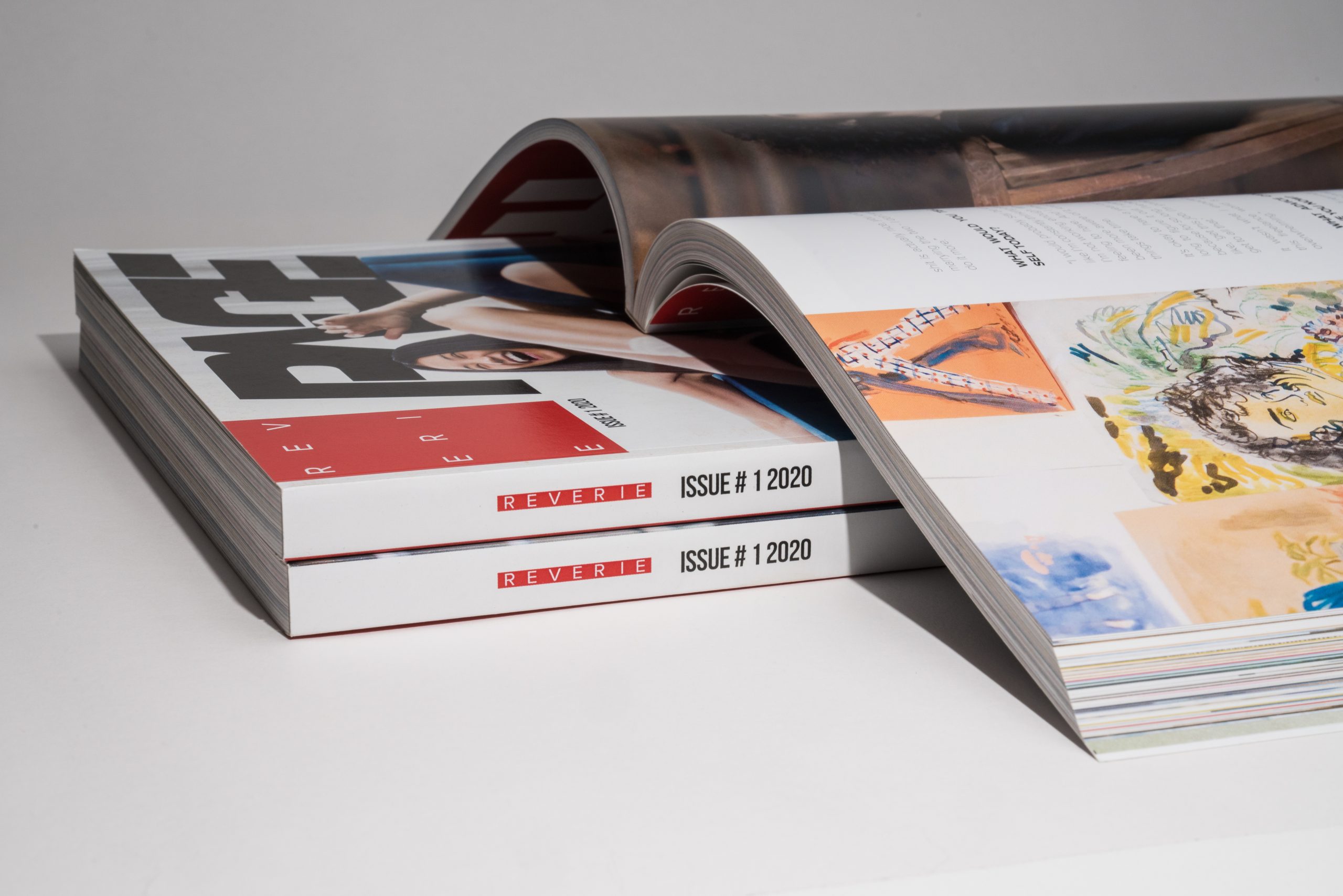
How To Arrange Pages For Booklet Printing
If you have ever tried to figure out how to arrange pages for booklet printing and ended up with page seven somehow next to the front cover, you are not alone. Page order for booklets trips up small business owners, designers, and even seasoned marketers. But don’t worry, we’re here to explain everything.
What Does “Arranging Pages For Booklet Printing” Actually Mean?
Before jumping into software settings, it helps to understand what is happening with the paper.
Most small to mid-size booklets are saddle-stitched. Sheets of paper are printed on both sides, folded, nested together, then stapled along the fold. Each folded sheet creates four pages in the booklet. That means saddle-stitched booklets must have a page count that is a multiple of four: 4, 8, 12, 16, 20, and so on. Even if a page is intentionally blank, the press still ‘prints’ it, so it still counts as a page.
There are two ways to think about page order:
Reader spreads: The way pages appear when someone flips through the booklet in order: 1, 2, 3, 4, 5, 6, etc.
Printer spreads (imposed layout): The way pages must sit on each sheet so that, after printing and folding, the booklet reads in order. For example, in an 8-page booklet, you might see page 8 paired with page 1 on one side of a sheet, and page 2 paired with page 7 on the other side.
Professional printers and modern design software use an imposition step to convert your normal, sequential pages into the printer spreads needed for production.
You design in reader order. Software or your print provider handles the rearranging.
Greener Printer typically prefers single-page PDFs in reading order, not manually rearranged spreads, because that gives our prepress team the most flexibility for accurate, efficient imposition. This approach is also common across trade printers.
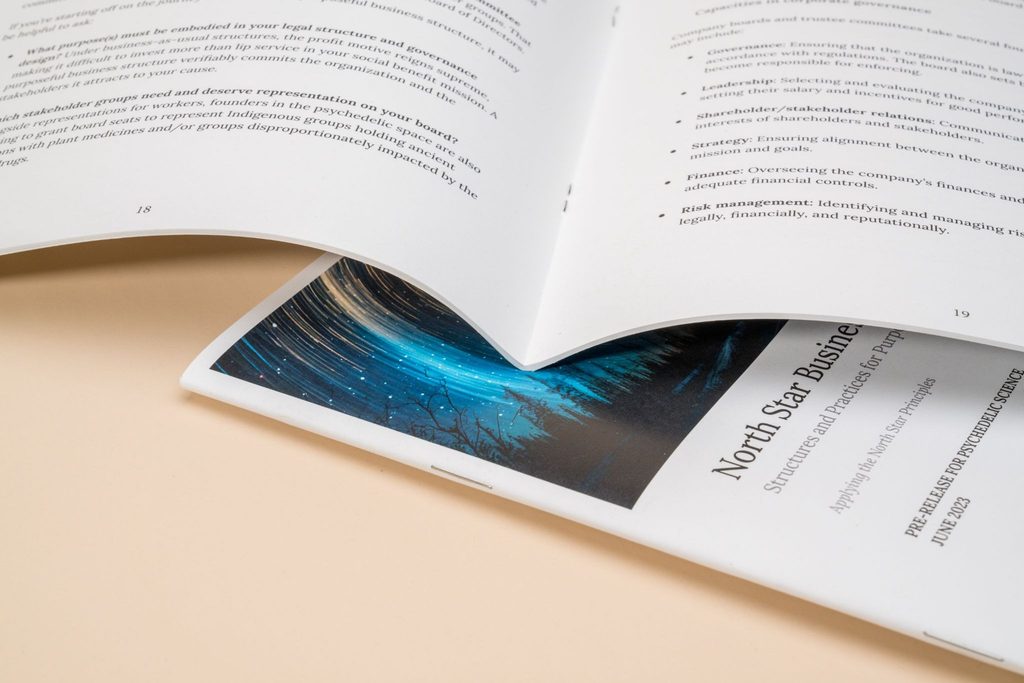
Spreads Vs Single Pages
At Greener Printer, we ask you to submit booklet files as single pages in one PDF, not spreads or imposed sheets. This applies to all bound projects, including wall calendars, desk calendars, magazines, programs, catalogs, and long-form books. But what is the difference between a spread and a single page?
A spread is simply two facing pages viewed together, left and right. You can absolutely design with crossovers across that spread, but the exported PDF should still contain separate pages, not one big two-page panel. That gives our prepress team the flexibility to set up the job correctly with imposition.
Imposition is the process of arranging those individual pages on a larger press sheet that will be printed, folded, and trimmed into your finished booklet. It saves paper and money, but can be confusing to set up on your own. Greener Printer’s prepress team takes care of all imposition for you, so your only task is to export a PDF of your booklet with individual pages in reading order.
How Binding Type Impacts Page Count
Saddle-Stitched Binding
Minimum Page Count: 4 pages + 4 page cover
Maximum Page Count: 56 pages + 4 page cover
Additional Requirements: Page count must be a multiple of four (4, 8, 16, 20, etc.) due to the nature of saddle stitching.
Perfect Binding
Minimum Page Count: 28 pages + 4 page cover
Maximum Page Count: No maximum
Additional Requirements: Page count must be a multiple of two.
Wire-O and Spiral Binding
Minimum Page Count: No minimum
Maximum Page Count: No maximum
Additional Requirements: Booklets that are over 1 inch thick may need to use coil binding instead.
How To Organize Pages To Print A Booklet
When you think about how to arrange pages for booklet printing, start with three decisions:
Binding type and finished size
For most small catalogs, programs, lookbooks, and event books, you will use saddle stitch. Other options like perfect binding or coil binding, follow similar page-count logic but use different finishing equipment.
Total page count
For saddle-stitched booklets, keep the total page count to a multiple of four. If your content lands at 22 pages, you either need to edit to 20 or expand to 24. Those “extra” slots can be used for ads, contact details, or intentional blanks (inside covers, notes pages, etc.).
Cover vs interior pages
Traditionally, the cover set is:
- Page 1: front cover
- Page 2: inside front cover
- Last page: back cover
- Second-to-last page: inside back cover (often used for legal, disclaimers, or contact info)
Once those basics are clear, the practical steps become much easier.
Key takeaway:
Create your booklet with pages in natural reading order and the correct total page count. Let tools and your print partner handle the rearranging into printer spreads.
How To Arrange Pages For Booklet Printing In Publisher
Microsoft Publisher includes built-in booklet support, which means you do not have to manually shuffle pages. The trick is to start with the right layout type and let Publisher manage the multiple-of-four page count for you.
Here is a straightforward workflow for a letter-size booklet printed on 8.5″ × 11″ paper:
- Create your booklet document
- Open Publisher and create a new publication.
- Choose a booklet template, or go to Page Design > Size > Page Setup.
- Set your final page size (for example, 5.5″ × 8.5″).
- In layout options, choose the booklet option (often called “Booklet” or “Book fold” in Microsoft resources).
- Confirm the page count and let Publisher add pages as needed
- Add or delete pages so your total is 4, 8, 12, 16, etc.
If your page total is not a multiple of four, Publisher can prompt you to insert extra pages so the count fits the saddle stitched booklet layout. Use those extra pages strategically for coupon codes, or a short brand story.
Once you are happy, you can output a ready-to-print PDF from Publisher or send files for Greener Printer to review. Many customers send their Publisher PDFs and ask us to preflight for page order, bleed, and safe margins.
How To Arrange Pages For Booklet Printing In InDesign
Adobe InDesign is a favorite among design professionals for booklet work. The good news is that InDesign also prefers pages in normal reading order. Its Print Booklet feature generates printer spreads for you.
Here is a reliable workflow for saddle stitched booklet page layout in InDesign:
- Set up the booklet document. Go to File > New > Document.
- Turn on Facing Pages so left and right pages appear as reader spreads.
- Choose your final page size.
- Pick a starting page count that is a multiple of four. You can always add sets of four later if the project grows.
Design in reader order, not printer spreads:
- Page 1: front cover
- Page 2: inside front cover
- Middle pages: content in sequence
- Final pages: inside back cover and back cover
Keep all pages the same size and orientation. Many printer imposition tools assume consistent dimensions for best results.
Export Single Pages For Professional Booklet Printing
For professional printing, most shops (Greener Printer included) prefer a single-page PDF in reader order rather than an imposed booklet PDF. The steps are simple:
- Go to File > Export.
- Choose Adobe PDF (Print).
- Under General, export Pages, not spreads.
- Include bleeds and marks if requested in your printer’s specs.
Our prepress team will handle imposition based on your finished size, press sheet, binding, and stock so that the final layout is as efficient and accurate as possible.
Common Booklet Page Order Mistakes To Avoid
Once you understand the concepts, booklet page order becomes much easier. Still, a few recurring pitfalls cause headaches for many teams. Here are the most common ones we see at Greener Printer and how to avoid them:
Manually rearranging pages into printer spreads
Designers sometimes build files as 8-1, 2-7, 6-3, etc. That used to be common in older workflows, but it often conflicts with modern imposition tools. Stick to page 1, 2, 3, 4, in order and let the printer handle the rearranging.
Odd or “almost right” page counts
A 22-page saddle-stitched booklet forces the printer to add two blank pages somewhere to reach 24. Plan your content to hit 20 or 24 on purpose and assign clear roles to any blanks.
Mixing page sizes inside one booklet
Dropping in a single oversized page or panel inside a standard booklet complicates imposition and can cause trimming errors. If you need a special fold-out section, discuss it with your printer early.
Ignoring inside margins near the fold
When pages are nested, inner margins can visually shrink. Keep important text away from the gutter so it does not drift into the fold during trimming and binding.
Relying only on printer-driver “booklet” settings
Some desktop printer drivers offer a booklet mode that reorders pages on the fly. That can be handy for office proofs, but it is not a substitute for a proper prepress workflow on a commercial press.
A quick paper mockup, created from a low-resolution printout, is often the fastest way to check for these issues before you commit to production.
Eco-Conscious Layout Tips For Greener Booklets
Because Greener Printer focuses on sustainable print, page arrangement decisions are never just about mechanics. They also influence paper use, ink coverage, and shipping weight. A few layout habits can make your booklet more eco-friendly without sacrificing impact:
Right-size your booklet
Choose a finished size that works well with common press sheets to minimize paper waste. For many projects, half-letter or digest sizes fit efficiently on standard sheets and still leave plenty of room for design.
Avoid “throwaway” pages
If you need to bump your page count up to the next multiple of four, use the added pages intentionally. Think reference content, sizing charts, event notes, or re-usable checklists instead of filler.
Design for longevity
If your brand or product range stays stable, consider removing time-sensitive information (specific dates, prices) from the main booklet. That allows longer print runs on sustainable stocks like recycled or FSC-certified paper, which often lowers your environmental footprint and unit cost over time.
Use efficient color and ink coverage
Design choices such as large solid ink areas on every page can increase ink usage. Strategic white space and clean typography often look more premium and eco-conscious.
At Greener Printer, our team can review your files and suggest size and layout adjustments that conserve material while still achieving your design goals.
Quick Checklist: How To Arrange Pages For Booklet Printing The Smart Way
Here is a short recap you can keep beside you while working on your next booklet:
- Confirm your binding (usually saddle stitch for shorter booklets).
- Set the page count to a multiple of four. Add purposeful extra pages if needed.
- In Publisher or InDesign, create pages in natural reading order.
- Do not rearrange pages into printer spreads manually.
- Keep margins generous near the fold and trim edges.
- Output a single-page PDF in reading order for your print provider, unless they specifically request something different.
- Print a low-cost mockup, fold and staple it, and flip through it like a customer.
If you follow that checklist, arranging pages for booklet printing becomes a predictable process instead of a guessing game.
How Greener Printer Supports Stress-Free, Sustainable Booklet Printing
Greener Printer works with design studios, nonprofits, small businesses, and eco-conscious brands that want beautiful, custom booklets without waste or guesswork.
If you are planning a catalog, event program, field guide, or brand booklet and still have questions about how to arrange pages for booklet printing, you can treat Greener Printer as your production partner, not just a vendor.
Ready to bring your project to life? Greenerprinter offers a full range of sustainable printing options. Explore some of our most popular products:
Book & Booklet Printing
Custom Book Printing | Custom Booklet Printing | Saddle-Stitched Booklets | Zines | Catalogs | Custom Calendars