
Knowing how to print from Canva is less about clicking the download button and more about building your file so it survives real production: trimming, folding, color conversion, and press output. If you’ve ever had a Canva piece come back with unexpected borders, soft images, or type that looks different than it did on screen, the fix is usually in your setup and export choices.
How To Export Your Canva Design As A Print-Ready PDF?
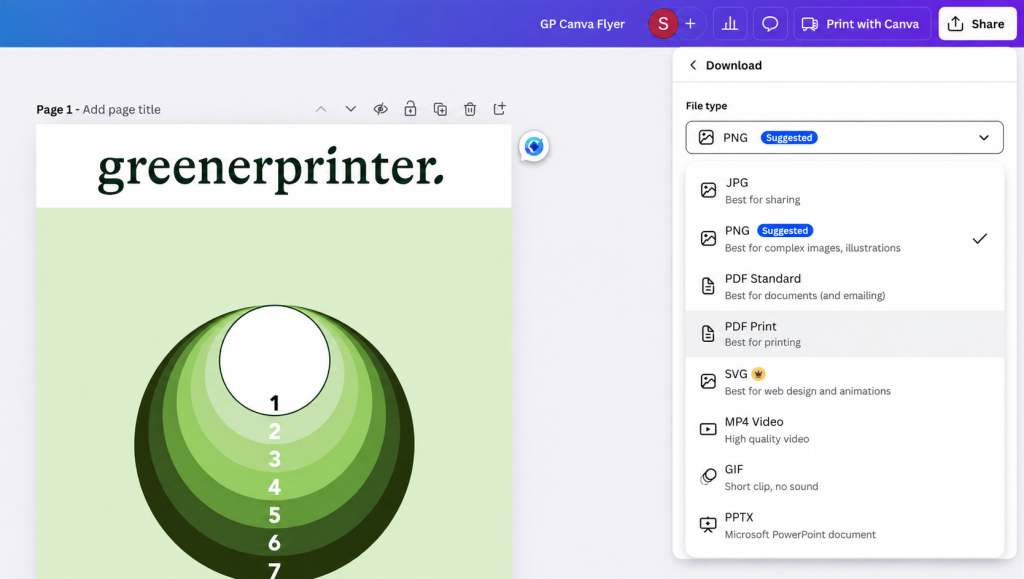
In Canva, go to Share > Download, then choose PDF Print as the file type.
Next, select the print settings shown in the download panel:
- Turn on Crop marks and bleed for full-bleed designs (backgrounds or photos that go to the edge).
- Use Flatten PDF if your design has effects or lots of layered elements.
- If you see a Color profile option, choose CMYK. Free Canva accounts may not show this setting, but at Greenerprinter, we can convert the file type for you.
- Click Download, open the PDF, and check it at 100% zoom for sharp text and clean edges.
- Then upload it to your printer or send it to their team.
Our software performs an automated file check to provide an instant soft proof when no issues are detected. If you choose a manual pre-flight, our pre-press team will perform a courtesy check for common issues.
How To Print From Canva For A Professional Printer? Templates
Professional printing follows specific specs. Canva can work well inside that world, but only if your design matches the printer’s requirements from the beginning.
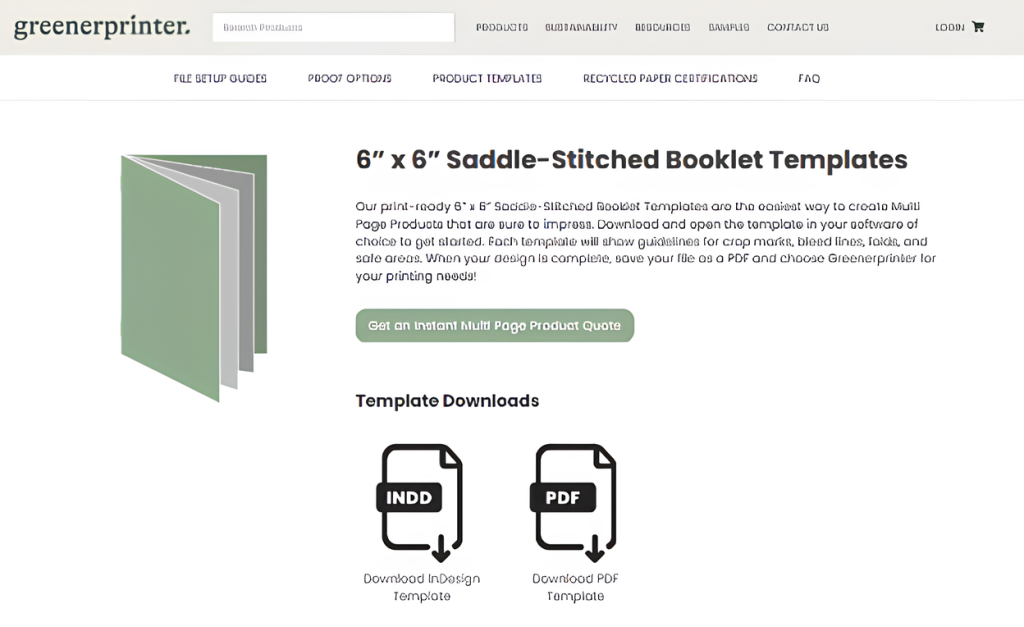
If you want a faster path to a print-ready Canva file, start with a Greenerprinter product PDF templates. They’re free and include crop/bleed and safe-area guides for many products, so you spend less time guessing and more time designing.
How To Print From Canva For A Professional Printer? DIY
If you are more of a DIY designer or working from existing Canva files, lock in the basics: final size, bleed, and how the piece will be finished (trim only, folded, bound, die-cut, mailed).
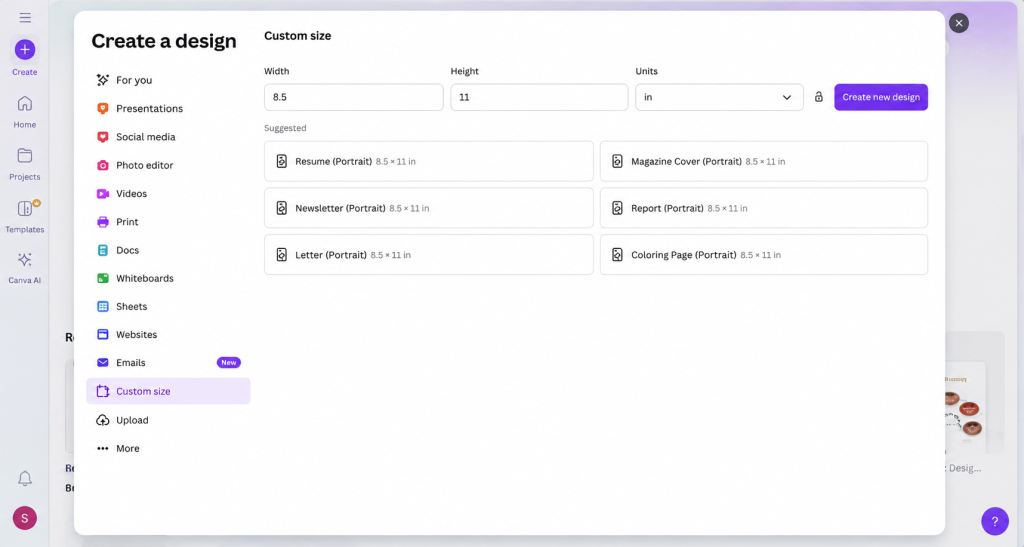
Start by matching the printer’s trim size
Your Canva document should be built at the exact finished size (trim size). For example, if your printer quote is for a 6” x 6” Saddle-Stitched Booklet, build a 6” x 6” Canva file. Resizing later can shift text reflow, move margins, and weaken image quality.
Set bleed early and design with trim in mind
Bleed is the extra background image/color that extends past the trim line so your piece can cut clean to the edge. If you want full-bleed printing (backgrounds or photos that reach the edge), you need bleed built into the design and included in the export.
A practical way to think about it:
- anything meant to run off the edge should extend past the edge
- anything you can’t afford to lose should sit comfortably inward.
- logos, QR codes, addresses, and tiny type should never live near the cut line.
Build a “safe zone” for critical content
Printers trim stacks of paper, not single sheets. That means small shifts can happen.
Keep important elements away from edges, and avoid placing thin borders close to the trim. Border designs are one of the most common Canva-to-print heartbreaks because the tiny trim shifts become obvious.
Choose images that can handle press output
Screen designs can hide flaws that print reveals immediately. If an image looks soft in Canva at 100% zoom, it will look even softer on paper. The most common cause of this is scaling up a small image to fill a large area.
For crisp images, use high-resolution originals and avoid screenshots as final art. If you’re printing large formats (posters, signs), image quality becomes even more important.
Treat small type like a production element
Print has physical limits. Very thin fonts, hairline strokes, and tiny sizes may look elegant on screen and turn faint on paper, especially on uncoated stocks that can soak up more ink.
If you’re designing a menu, label, or anything with fine print, choose readable weights and give the type room to breathe. Always test-scan QR codes before exporting to confirm they are large enough.
How To Export A Canva Design For Print With The Right File Settings?
Most professional printers prefer a print-ready PDF. In Canva, that means exporting as PDF Print, then making a couple of smart choices depending on your design.
Use PDF Print, not PDF Standard
When you’re sending files to a commercial printer, PDF Print is the correct starting point. It’s designed for production rather than on-screen viewing.
Inside Canva: open your design > Share > Download > select PDF Print.
Include bleed and crop marks when the job calls for it
If your design prints to the edge, export with bleed and crop marks. Crop marks show the printer where the final trim occurs; bleed gives a buffer so trimming doesn’t create white slivers.
If your piece has a white border by choice and nothing runs to the edge, bleed may not be needed. Some printers still like crop marks for trimming accuracy, so it’s worth following the spec you were given.
Flatten the PDF if your design uses effects or layered elements
Canva designs can include shadows, transparency, gradients, and stacked elements. Those can render differently across the software that translates your file for press. A flattened PDF reduces surprises, especially with special effects and layered text.
A simple workflow many pros use: keep an editable Canva version for future updates, and export a flattened PDF for the print run.
Color expectations: what Canva can and can’t control
Printed color rarely matches a screen perfectly. Screens glow; paper reflects light. Paper choice, coating, and the press itself all shift color.
If brand color accuracy is critical, ask your printer about proofs and the paper stock you plan to use. A proof can prevent an expensive redo, especially for packaging, signage, or anything with strict brand standards.
Want Canva Convenience With A Premium, Eco-Conscious Finish?
Canva is a great design tool, everyday people can create custom booklets, brochures, playing cards, and more without a steep learning curve. Professional results come from the production choices that follow: paper selection, coatings, finishing details, and file prep that supports clean trimming and consistent output.
At Greenerprinter, we work with Canva-created designs every day. In fact, we offer File Guides for our most popular products.
We can review your exported PDF for print readiness, recommend sustainable paper and finishing options that fit your goals, and handle production so you get a polished final piece that feels as good as it looks.
Just tell us what you’re printing and the finished size, we’ll point you to the cleanest export setup for that specific job.
Printing Canva Designs Through A Professional Printer FAQs
Can I get professional prints from Canva designs?
Yes. Canva can produce files that print beautifully, as long as the design is built to the correct size and exported as a print-ready PDF with bleed when needed.
Can you print directly from Canva without downloading?
Canva offers an in-app print option for many products, but professional printers typically work from a downloaded print-ready PDF. Downloading gives you more control over paper, finishing, and proofing.
How to print from Canva for free
If your goal is avoiding Canva’s printing service, you can design in Canva and send a PDF Print file to any print shop; some printers like Greenerprinter offer Canva-specific printing guides. Keep in mind that premium Canva elements may require payment before download.
Ready to bring your project to life? Greenerprinter offers a full range of sustainable printing options. Explore some of our most popular products: